

ESP32-S3 · 480×320 · 60 fps
Console
The Cirera, its firmware to install from the browser, the same console as an app for your computer, and RetroArch.
 The Cirera
An off-the-shelf development board with a screen. The engine gets the most out of it: it draws straight into strips, splits the work between the two cores and keeps whatever doesn't fit on the microSD card.
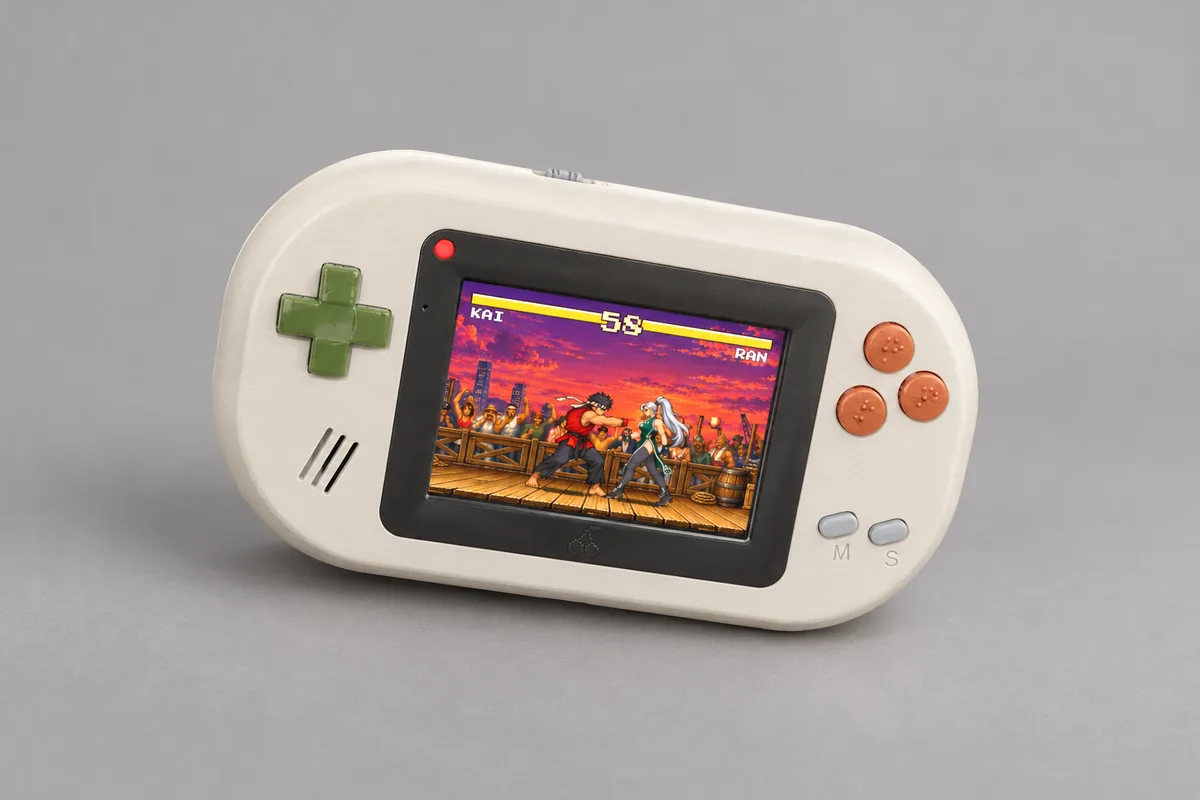
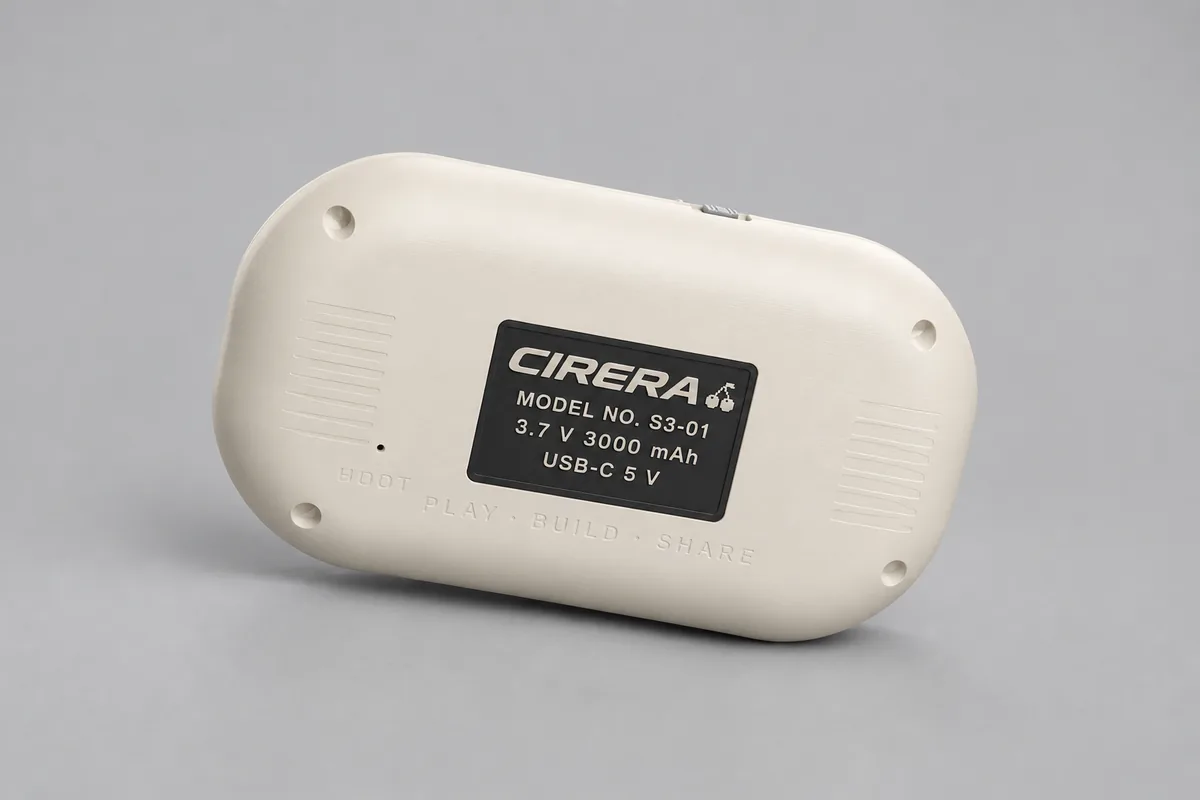
- Board
- Freenove FNK0104N
- Chip
- ESP32-S3R8, two cores at 240 MHz
- Memory
- 512 KB of internal RAM, 8 MB of PSRAM, 16 MB of flash
- Screen
- 3.5″, 480×320, ST77922 over QSPI, touch
- Sound
- ES8311 with speaker
- The rest
- microSD, battery, USB
Install the firmware from the browser
- Connect the board to your computer over USB.
- Press the button and choose the board's port.
- Wait a few minutes: it starts with 17 games in its memory.
Firmware a2b1506 · 13.9 MB · the files for esptool (opens in a new tab)
The v1.0 case, designed
It still has to be printed and tested. Then its print files (CC BY 4.0), the parts list and the assembly guide will be published. In the meantime, the bare board already runs the games.
How to wire it (opens in a new tab) · The Freenove board (opens in a new tab)
Cirera on your computer
The console as an app for Mac, Windows and Linux: its menu, the example games inside, and any game from the Library. It is the same engine, so the game is the same, with a keyboard or a gamepad.
Open it the first time
It is not signed by Apple or Microsoft yet, so your system warns you the first time.
On a Mac, unzip it, drag Cirera to Applications and open it. When it warns you, go to System Settings → Privacy & Security and click “Open Anyway”.
On Windows, unzip it and open Cirera.exe. If “Windows protected your PC” shows up, click “More info” and then “Run anyway”.
On Linux, unpack the .tar.gz and open Cirera, inside its folder. Installing games by dropping them on the window needs unzip, which nearly every distribution already has.
Add games
Download the .zip of any game on this page or in the Library and drop it on Cirera's window: it installs and shows up in the menu.
Play
Arrows to move; Z or Enter is A, X or Esc is B, C is C and P is START. Hold I (MENU) for two seconds to go back to the menu, and F11 for full screen. On a gamepad, X or Y act as C, and SELECT as MENU. Your saves stay on your computer.
In RetroArch and RetroPie
No console? The engine is also a libretro core: pinyol games play in RetroArch and in everything built on it, such as RetroPie or Lakka on a Raspberry Pi, Batocera, Recalbox, the handhelds that run it, or a computer. It is the same engine, so the game is the same.
Install it on RetroPie
On the Raspberry Pi, this command downloads the core already built (a Pi 1 or Zero builds it, in a few minutes) and adds Pinyol to EmulationStation.
cd ~/RetroPie-Setup
curl -fsSL --create-dirs \
  -o ext/pinyol/scriptmodules/libretrocores/lr-pinyol.sh \
  https://raw.githubusercontent.com/ipaud/pinyol/main/platform/libretro/lr-pinyol.sh
sudo ./retropie_packages.sh lr-pinyol
Copy the games
Any game's .zip, like the ones you can download here, goes in its folder.
~/RetroPie/roms/pinyol/Play
Restart EmulationStation and Pinyol shows up with its games. On the gamepad, X or Y act as C, and SELECT as MENU.